<!DOCTYPE html>
    <html lang="vi" xmlns="http://www.w3.org/1999/xhtml" prefix="og: http://ogp.me/ns#">
    <head>
<title>Giới thiệu và cấu hình Visual Studio Code – Trình soạn thảo tối ưu cho lập trình viên |  Hoclaptrinh99.com</title>
<meta name="description" content="Giới thiệu và cấu hình Visual Studio Code – Trình soạn thảo tối ưu cho lập trình viên - Savefile - Blog -...">
<meta name="keywords" content="blog lập trình">
<meta name="news_keywords" content="blog lập trình">
<meta name="author" content="Học Lập Trình 99">
<meta name="copyright" content="Học Lập Trình 99 [hoclaptrinh99@gmail.com]">
<meta name="generator" content="NukeViet v5.0">
<meta name="viewport" content="width=device-width, initial-scale=1">
<meta name="google-site-verification" content="BSwsW_B32JEmlT2cuZD1IQZqLeh5J64CB7lFDySkFVY">
<meta http-equiv="Content-Type" content="text/html; charset=utf-8">
<meta property="og:title" content="Giới thiệu và cấu hình Visual Studio Code – Trình soạn thảo tối ưu cho lập trình viên">
<meta property="og:type" content="website">
<meta property="og:description" content="Savefile - Blog - https&#x3A;&#x002F;&#x002F;hoclaptrinh99.com&#x002F;blog&#x002F;savefile&#x002F;khac&#x002F;gioi-thieu-va-cau-hinh-visual-studio-code-trinh-soan-thao-toi-uu-cho-lap-trinh-vien-3.html">
<meta property="og:site_name" content="Học Lập Trình 99">
<meta property="og:image" content="https://hoclaptrinh99.com/uploads/opengrap.png">
<meta property="og:image:url" content="https://hoclaptrinh99.com/uploads/opengrap.png">
<meta property="og:image:type" content="image/png">
<meta property="og:image:width" content="1058">
<meta property="og:image:height" content="887">
<meta property="og:image:alt" content="Học Lập Trình 99">
<meta property="og:url" content="https://hoclaptrinh99.com/blog/savefile/khac/gioi-thieu-va-cau-hinh-visual-studio-code-trinh-soan-thao-toi-uu-cho-lap-trinh-vien-3.html">
<link rel="shortcut icon" href="https://hoclaptrinh99.com/uploads/500058390_729034789638068_2489363526938716286_n.jpg">
<link rel="canonical" href="https://hoclaptrinh99.com/blog/savefile/khac/gioi-thieu-va-cau-hinh-visual-studio-code-trinh-soan-thao-toi-uu-cho-lap-trinh-vien-3.html">
<link rel="alternate" href="https://hoclaptrinh99.com/blog/rss/" title="Blog" type="application/rss+xml">
<link rel="alternate" href="https://hoclaptrinh99.com/blog/rss/nukeviet/" title="Blog - NUKEVIET" type="application/rss+xml">
<link rel="alternate" href="https://hoclaptrinh99.com/blog/rss/php-mysql/" title="Blog - PHP MYSQL" type="application/rss+xml">
<link rel="alternate" href="https://hoclaptrinh99.com/blog/rss/html-css-js/" title="Blog - HTML CSS JS" type="application/rss+xml">
<link rel="alternate" href="https://hoclaptrinh99.com/blog/rss/python/" title="Blog - PYTHON" type="application/rss+xml">
<link rel="alternate" href="https://hoclaptrinh99.com/blog/rss/linux/" title="Blog - LINUX" type="application/rss+xml">
<link rel="alternate" href="https://hoclaptrinh99.com/blog/rss/khac/" title="Blog - KHÁC" type="application/rss+xml">
<link rel="search" type="application/opensearchdescription+xml" href="https://hoclaptrinh99.com/seek/opensearch/blog/" title="Blog">
<link rel="preload" as="font" href="/assets/fonts/fontawesome-webfont.woff2" type="font/woff2" crossorigin>
<link rel="preload" as="font" href="/themes/default/fonts/NukeVietIcons.woff2" type="font/woff2" crossorigin>
<link rel="preload" as="image" href="/themes/ts_sharecode/images/header.png" type="image/png">
<link rel="preload" as="script" href="https://hoclaptrinh99.com/assets/js/jquery/jquery.min.js" type="text/javascript">
<link rel="preload" as="script" href="https://hoclaptrinh99.com/assets/js/language/vi.js" type="text/javascript">
<link rel="preload" as="script" href="https://hoclaptrinh99.com/assets/js/DOMPurify/purify3.js" type="text/javascript">
<link rel="preload" as="script" href="https://hoclaptrinh99.com/assets/js/global.js" type="text/javascript">
<link rel="preload" as="script" href="https://hoclaptrinh99.com/assets/js/site.js" type="text/javascript">
<link rel="preload" as="script" href="https://hoclaptrinh99.com/themes/default/js/news.js" type="text/javascript">
<link rel="preload" as="script" href="https://hoclaptrinh99.com/themes/ts_sharecode/js/main.js" type="text/javascript">
<link rel="preload" as="script" href="https://hoclaptrinh99.com/themes/ts_sharecode/js/sweetalert.min.js" type="text/javascript">
<link rel="preload" as="script" href="https://hoclaptrinh99.com/themes/ts_sharecode/toastr/toastr.js" type="text/javascript">
<link rel="preload" as="script" href="https://hoclaptrinh99.com/themes/ts_sharecode/toastr/tienganh.js" type="text/javascript">
<link rel="preload" as="script" href="https://hoclaptrinh99.com/themes/ts_sharecode/assets/vendor/php-email-form/validate.js" type="text/javascript">
<link rel="preload" as="script" href="https://hoclaptrinh99.com/themes/ts_sharecode/assets/vendor/bootstrap/js/bootstrap.bundle.min.js" type="text/javascript">
<link rel="preload" as="script" href="https://hoclaptrinh99.com/themes/ts_sharecode/assets/vendor/waypoints/jquery.waypoints.min.js" type="text/javascript">
<link rel="preload" as="script" href="https://hoclaptrinh99.com/themes/ts_sharecode/assets/vendor/counterup/counterup.min.js" type="text/javascript">
<link rel="preload" as="script" href="https://hoclaptrinh99.com/themes/ts_sharecode/assets/vendor/jquery.easing/jquery.easing.min.js" type="text/javascript">
<link rel="preload" as="script" href="https://hoclaptrinh99.com/themes/ts_sharecode/assets/vendor/owl.carousel/owl.carousel.min.js" type="text/javascript">
<link rel="preload" as="script" href="https://hoclaptrinh99.com/themes/ts_sharecode/assets/js/main.js" type="text/javascript">
<link rel="preload" as="script" href="https://hoclaptrinh99.com/themes/ts_sharecode/assets/vendor/aos/aos.js" type="text/javascript">
<link rel="preload" as="script" href="https://hoclaptrinh99.com/assets/js/select2/select2.min.js" type="text/javascript">
<link rel="preload" as="script" href="https://hoclaptrinh99.com/themes/ts_sharecode/js/custom.js" type="text/javascript">
<link rel="preload" as="script" href="https://hoclaptrinh99.com/themes/ts_sharecode/js/bootstrap.min.js" type="text/javascript">
<link rel="preload" as="style" href="/assets/css/core.r.min.css?t=1764339859" type="text/css">
<link rel="preload" as="style" href="https://hoclaptrinh99.com/assets/css/font-awesome.min.css" type="text/css">
<link rel="preload" as="style" href="https://hoclaptrinh99.com/themes/ts_sharecode/css/bootstrap.min.css" type="text/css">
<link rel="preload" as="style" href="https://hoclaptrinh99.com/themes/ts_sharecode/css/style.css" type="text/css">
<link rel="preload" as="style" href="https://hoclaptrinh99.com/themes/ts_sharecode/css/style.responsive.css" type="text/css">
<link rel="preload" as="style" href="https://hoclaptrinh99.com/themes/ts_sharecode/css_custom/sweetalert.css" type="text/css">
<link rel="preload" as="style" href="https://hoclaptrinh99.com/themes/ts_sharecode/toastr/toastr.css" type="text/css">
<link rel="preload" as="style" href="https://hoclaptrinh99.com/themes/ts_sharecode/assets/css/style.css" type="text/css">
<link rel="preload" as="style" href="https://hoclaptrinh99.com/themes/ts_sharecode/assets/vendor/animate.css/animate.min.css" type="text/css">
<link rel="preload" as="style" href="https://hoclaptrinh99.com/themes/ts_sharecode/assets/vendor/owl.carousel/assets/owl.carousel.min.css" type="text/css">
<link rel="preload" as="style" href="https://hoclaptrinh99.com/themes/ts_sharecode/assets/vendor/remixicon/remixicon.css" type="text/css">
<link rel="preload" as="style" href="https://hoclaptrinh99.com/themes/ts_sharecode/assets/vendor/boxicons/css/boxicons.min.css" type="text/css">
<link rel="preload" as="style" href="https://hoclaptrinh99.com/themes/ts_sharecode/assets/vendor/icofont/icofont.min.css" type="text/css">
<link rel="preload" as="style" href="https://hoclaptrinh99.com/themes/ts_sharecode/assets/vendor/bootstrap/css/bootstrap.min.css" type="text/css">
<link rel="preload" as="style" href="https://hoclaptrinh99.com/assets/js/select2/select2.min.css" type="text/css">
<link rel="preload" as="style" href="https://hoclaptrinh99.com/themes/ts_sharecode/assets/vendor/aos/aos.css" type="text/css">
<link rel="preload" as="style" href="https://hoclaptrinh99.com/themes/ts_sharecode/css/custom.css" type="text/css">
<link rel="stylesheet" href="/assets/css/core.r.min.css?t=1764339859">
<link rel="stylesheet" href="https://hoclaptrinh99.com/assets/css/font-awesome.min.css">
<link rel="stylesheet" href="https://hoclaptrinh99.com/themes/ts_sharecode/css/bootstrap.min.css">
<link rel="stylesheet" href="https://hoclaptrinh99.com/themes/ts_sharecode/css/style.css">
<link rel="stylesheet" href="https://hoclaptrinh99.com/themes/ts_sharecode/css/style.responsive.css">
<link rel="stylesheet" href="https://hoclaptrinh99.com/themes/ts_sharecode/css_custom/sweetalert.css">
<link rel="stylesheet" href="https://hoclaptrinh99.com/themes/ts_sharecode/toastr/toastr.css">
<link rel="stylesheet" href="https://hoclaptrinh99.com/themes/ts_sharecode/assets/css/style.css">
<link rel="stylesheet" href="https://hoclaptrinh99.com/themes/ts_sharecode/assets/vendor/animate.css/animate.min.css">
<link rel="stylesheet" href="https://hoclaptrinh99.com/themes/ts_sharecode/assets/vendor/owl.carousel/assets/owl.carousel.min.css">
<link rel="stylesheet" href="https://hoclaptrinh99.com/themes/ts_sharecode/assets/vendor/remixicon/remixicon.css">
<link rel="stylesheet" href="https://hoclaptrinh99.com/themes/ts_sharecode/assets/vendor/boxicons/css/boxicons.min.css">
<link rel="stylesheet" href="https://hoclaptrinh99.com/themes/ts_sharecode/assets/vendor/icofont/icofont.min.css">
<link rel="stylesheet" href="https://hoclaptrinh99.com/themes/ts_sharecode/assets/vendor/bootstrap/css/bootstrap.min.css">
<link rel="stylesheet" href="https://hoclaptrinh99.com/assets/js/select2/select2.min.css">
<link rel="stylesheet" href="https://hoclaptrinh99.com/themes/ts_sharecode/assets/vendor/aos/aos.css">
<link rel="StyleSheet" href="https://hoclaptrinh99.com/themes/ts_sharecode/css/custom.css">
<style type="text/css">
    body{background: #fff;}
</style>
    </head>
    <body>
<div class="container-fluid"style="background-color:#fff;">
<div id="print">
    <div id="hd_print">
        <h2 class="pull-left">Học Lập Trình 99</h2>
        <p class="pull-right"><a title="Học Lập Trình 99" href="https://hoclaptrinh99.com/">https://hoclaptrinh99.com</a></p>
    </div>
    <div class="clear"></div>
    <hr />
    <div id="content">
        <h1>Giới thiệu và cấu hình Visual Studio Code – Trình soạn thảo tối ưu cho lập trình viên</h1>
        <ul class="list-inline">
            <li>Thứ hai, 03 Tháng M. một 2025 10:50 SA</li>
            <li class="hidden-print txtrequired"><em class="fa fa-print">&nbsp;</em><a title="In ra" href="https://hoclaptrinh99.com/#" data-toggle="winCMD" data-cmd="print">In ra</a></li>
            <li class="hidden-print txtrequired"><em class="fa fa-power-off">&nbsp;</em><a title="Đóng cửa sổ này" href="https://hoclaptrinh99.com/#"  data-toggle="winCMD" data-cmd="close">Đóng cửa sổ này</a></li>
        </ul>
        <div class="clear"></div>
        <div id="hometext">
            Visual Studio Code (VS Code) là trình soạn thảo mã nguồn mạnh mẽ, miễn phí và đa nền tảng do Microsoft phát triển. Với khả năng tùy chỉnh linh hoạt, hỗ trợ nhiều ngôn ngữ lập trình và kho tiện ích mở rộng phong phú, VS Code giúp lập trình viên làm việc nhanh chóng, hiệu quả hơn
        </div>
                <div class="imghome">
            <img alt="Giới thiệu và cấu hình Visual Studio Code – Trình soạn thảo tối ưu cho lập trình viên" src="https://hoclaptrinh99.com/uploads/blog/2025_10/gioi-thieu-va-cau-hinh-visual-studio-code-trinh-soan-thao-toi-uu-cho-lap-trinh-vien.png" width="460" class="img-thumbnail" />
        </div>
        <div class="clear"></div>
        <div id="bodytext" class="clearfix">
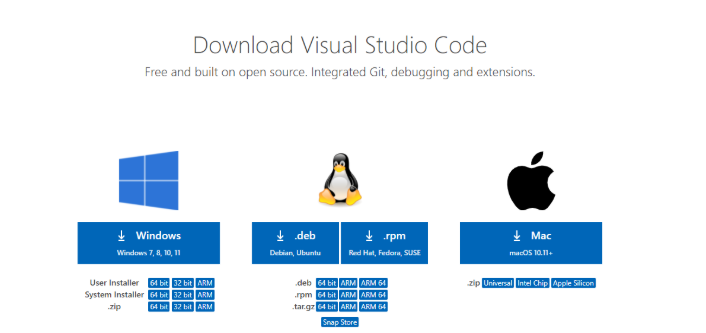
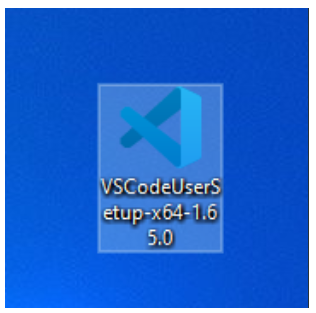
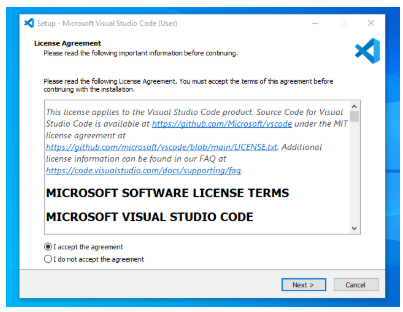
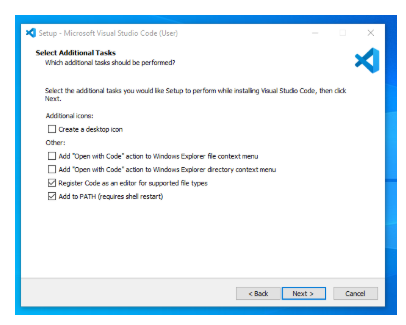
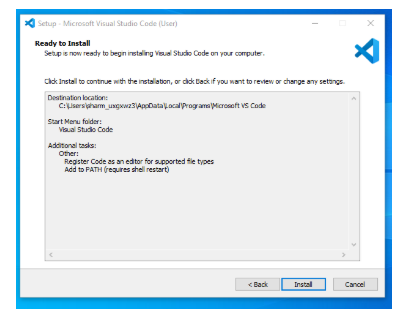
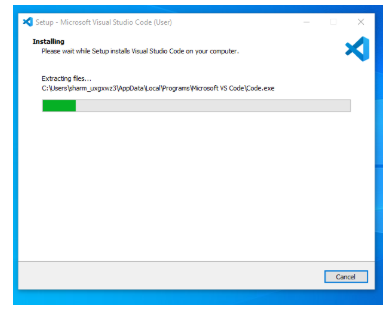
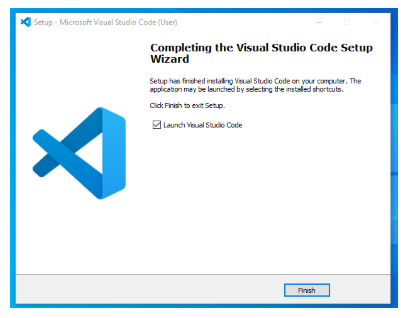
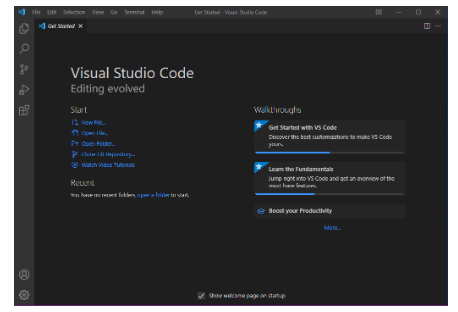
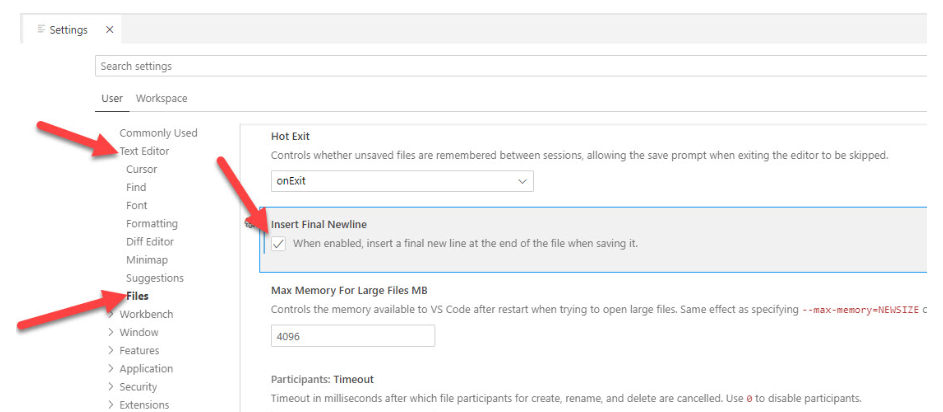
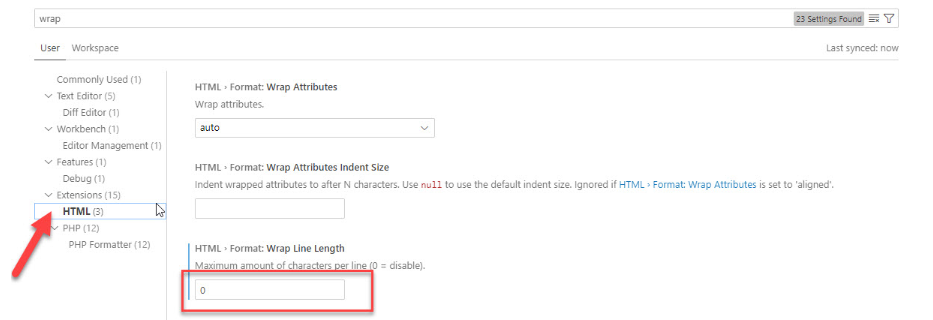
            <h2>Bước 1: Thực hiện truy cập trang: https://code.visualstudio.com/</h2><p>Thực hiện download theo hệ điều hành của bạn, như ảnh dưới đây là download trên hệ điều hành Window, thực hiện cài đặt về</p><figure class="image"><img style="aspect-ratio:706/333;" src="https://hoclaptrinh99.com/uploads/news/2025_10/image_5.png" width="706" height="333" /></figure><p style="margin-left:0px;">Chú ý: trên Ubuntu: nếu cài VS Code từ Ubuntu Software nó là app dạng snap, chưa hỗ trợ ibus nên không gõ được tiếng việt</p><p style="margin-left:0px;">Sau đó mình có gỡ cài đặt và lên <a href="https://code.visualstudio.com/download">https://code.visualstudio.com/download</a> để cài đặt và đã khắc phục được. Sau khi tải về thư mục /Downloads và mở terminal: cd Downloads ⇒</p><p>sudo dpkg -i &lt;tên_file_vừa_tải&gt; =&gt; sudo apt-get install -f</p><p style="margin-left:0px;">Khi mở file:</p><ul><li><p style="margin-left:0px;">Click chuột đơn: Mở file, sau đó sẽ tự động đóng lại nếu có file file khác mở</p></li><li><p style="margin-left:0px;">Click đúp chuột vào file thì nó mới mở cố định</p></li></ul><h2>Bước 2: Thực hiện cài đặt Vscode vừa tải về</h2><figure class="image"><img style="aspect-ratio:316/313;" src="https://hoclaptrinh99.com/uploads/news/2025_10/image_6.png" width="316" height="313" /></figure><h2>Bước 3: Nhấp vào biểu tượng Trình cài đặt để bắt đầu quá trình cài đặt Visual Studio Code.</h2><h2>Bước 4: Sau khi Trình cài đặt mở ra, bạn sẽ được yêu cầu chấp nhận các điều khoản và điều kiện của Visual Studio Code. Nhấp vào &quot;Tôi chấp nhận thỏa thuận&quot; rồi nhấp vào nút &quot;Tiếp theo&quot;.</h2><figure class="image"><img style="aspect-ratio:403/312;" src="https://hoclaptrinh99.com/uploads/news/2025_10/image_7.png" width="403" height="312" /></figure><h2>Bước 5: Chọn dữ liệu vị trí để chạy Visual Studio Code. Sau đó, bạn sẽ được yêu cầu duyệt vị trí. Sau đó, nhấp vào nút Tiếp theo.</h2><figure class="image"><img style="aspect-ratio:406/325;" src="https://hoclaptrinh99.com/uploads/news/2025_10/image_8.png" width="406" height="325" /></figure><h2>Bước 6: Sau đó, nó sẽ yêu cầu bắt đầu thiết lập cài đặt. Nhấp vào nút Cài đặt.</h2><figure class="image"><img style="aspect-ratio:400/314;" src="https://hoclaptrinh99.com/uploads/news/2025_10/image_9.png" width="400" height="314" /></figure><h2>Bước 7: Sau khi nhấp vào Cài đặt, sẽ mất khoảng 1 phút để cài đặt Visual Studio Code trên thiết bị của bạn.</h2><figure class="image"><img style="aspect-ratio:387/313;" src="https://hoclaptrinh99.com/uploads/news/2025_10/image_10.png" width="387" height="313" /></figure><h2>Bước 8: Sau khi quá trình cài đặt Visual Studio Code hoàn tất, một cửa sổ như bên dưới sẽ hiển thị. Đánh dấu vào ô &quot;Khởi chạy Visual Studio Code&quot; rồi nhấp vào Tiếp theo.</h2><figure class="image"><img style="aspect-ratio:401/318;" src="https://hoclaptrinh99.com/uploads/news/2025_10/image_11.png" width="401" height="318" /></figure><h2>Bước 9: Sau bước trước, cửa sổ Visual Studio Code đã mở ra thành công. Bây giờ bạn có thể tạo một tệp mới trong cửa sổ Visual Studio Code và chọn ngôn ngữ lập trình của mình để bắt đầu hành trình lập trình!</h2><figure class="image"><img style="aspect-ratio:458/312;" src="https://hoclaptrinh99.com/uploads/news/2025_10/image_12.png" width="458" height="312" /></figure><p>Quá trình cặt đặt đã hoàn tất, chúng ta cùng bật VSCode để trải nghiệm nào</p><h2>Tiếp theo là giới thiệu 1 số phím tắt thông dụng khi dùng VSCode</h2><figure class="table"><table style="background-color:rgb(255, 255, 255);border:1px solid rgb(204, 204, 204);"><tr><th style="background-color:rgb(238, 238, 238);border:1px solid rgb(204, 204, 204);padding:0.3em 0.5em;vertical-align:top;"><strong>Tổ hợp phím</strong></th><th style="background-color:rgb(238, 238, 238);border:1px solid rgb(204, 204, 204);padding:0.3em 0.5em;vertical-align:top;"><strong>Công dụng</strong></th></tr><tbody><tr><td style="border:1px solid rgb(204, 204, 204);padding:0.3em 0.5em;vertical-align:top;">Shift+Alt+F</td><td style="border:1px solid rgb(204, 204, 204);padding:0.3em 0.5em;vertical-align:top;">Định dạng code toàn file</td></tr><tr><td style="border:1px solid rgb(204, 204, 204);padding:0.3em 0.5em;vertical-align:top;">Ctrl + F</td><td style="border:1px solid rgb(204, 204, 204);padding:0.3em 0.5em;vertical-align:top;">Định dạng code được chọn (bôi đen)</td></tr><tr><td style="border:1px solid rgb(204, 204, 204);padding:0.3em 0.5em;vertical-align:top;">Ctrl + Shift + K</td><td style="border:1px solid rgb(204, 204, 204);padding:0.3em 0.5em;vertical-align:top;">Xóa dòng</td></tr><tr><td style="border:1px solid rgb(204, 204, 204);padding:0.3em 0.5em;vertical-align:top;">Ctrl + `</td><td style="border:1px solid rgb(204, 204, 204);padding:0.3em 0.5em;vertical-align:top;">Ẩn / Hiện Terminal</td></tr><tr><td style="border:1px solid rgb(204, 204, 204);padding:0.3em 0.5em;vertical-align:top;">Ctrl + Shift + `</td><td style="border:1px solid rgb(204, 204, 204);padding:0.3em 0.5em;vertical-align:top;">Mở cửa sổ Terminal mới</td></tr><tr><td style="border:1px solid rgb(204, 204, 204);padding:0.3em 0.5em;vertical-align:top;">Ctrl + Shift + 5</td><td style="border:1px solid rgb(204, 204, 204);padding:0.3em 0.5em;vertical-align:top;">Split terminal - chia cửa sổ terminal (sau khi đã mở terminal)</td></tr><tr><td style="border:1px solid rgb(204, 204, 204);padding:0.3em 0.5em;vertical-align:top;">Ctrl + L</td><td style="border:1px solid rgb(204, 204, 204);padding:0.3em 0.5em;vertical-align:top;">Chọn dòng hiện tại</td></tr><tr><td style="border:1px solid rgb(204, 204, 204);padding:0.3em 0.5em;vertical-align:top;">Ctrl + Shift + K</td><td style="border:1px solid rgb(204, 204, 204);padding:0.3em 0.5em;vertical-align:top;">xóa một dòng nơi mà con trỏ đang đứng</td></tr><tr><td style="border:1px solid rgb(204, 204, 204);padding:0.3em 0.5em;vertical-align:top;">Ctrl + Space</td><td style="border:1px solid rgb(204, 204, 204);padding:0.3em 0.5em;vertical-align:top;">Một hộp thoại sẽ xuất hiện để liệt kê tất cả các phương thức và biến có sẵn trong</td></tr><tr><td style="border:1px solid rgb(204, 204, 204);padding:0.3em 0.5em;vertical-align:top;">Ctrl + G</td><td style="border:1px solid rgb(204, 204, 204);padding:0.3em 0.5em;vertical-align:top;">Ẩn / Một hộp thoại sẽ xuất hiện và bạn cần nhập số dòng mong muốn chuyển đến trong tệp hiện tại. Sau đó, con trỏ sẽ di chuyển đến dòng đó</td></tr><tr><td style="border:1px solid rgb(204, 204, 204);padding:0.3em 0.5em;vertical-align:top;">Ctrl + W</td><td style="border:1px solid rgb(204, 204, 204);padding:0.3em 0.5em;vertical-align:top;">Ẩn / Đóng file làm việc hiện tại</td></tr><tr><td style="border:1px solid rgb(204, 204, 204);padding:0.3em 0.5em;vertical-align:top;">Ctrl + P</td><td style="border:1px solid rgb(204, 204, 204);padding:0.3em 0.5em;vertical-align:top;">gõ tên file để tìm kiếm nhanh file cần mở</td></tr><tr><td style="border:1px solid rgb(204, 204, 204);padding:0.3em 0.5em;vertical-align:top;">Ctrl + Alt + ⇒</td><td style="border:1px solid rgb(204, 204, 204);padding:0.3em 0.5em;vertical-align:top;">mở tính năng chia đôi cửa sổ code ở tab hiện tại</td></tr><tr><td style="border:1px solid rgb(204, 204, 204);padding:0.3em 0.5em;vertical-align:top;">Ctrl + Alt + ⇐</td><td style="border:1px solid rgb(204, 204, 204);padding:0.3em 0.5em;vertical-align:top;">tắt tính năng chia đôi cửa sổ code ở tab hiện tại</td></tr><tr><td style="border:1px solid rgb(204, 204, 204);padding:0.3em 0.5em;vertical-align:top;">Alt + Shift + ⇑</td><td style="border:1px solid rgb(204, 204, 204);padding:0.3em 0.5em;vertical-align:top;">copy dòng hiện tại lên dòng trên</td></tr><tr><td style="border:1px solid rgb(204, 204, 204);padding:0.3em 0.5em;vertical-align:top;">Alt + Shift + ⇓</td><td style="border:1px solid rgb(204, 204, 204);padding:0.3em 0.5em;vertical-align:top;">copy dòng hiện tại xuống dòng dưới</td></tr><tr><td style="border:1px solid rgb(204, 204, 204);padding:0.3em 0.5em;vertical-align:top;">Ctrl + /</td><td style="border:1px solid rgb(204, 204, 204);padding:0.3em 0.5em;vertical-align:top;">toggle comment dòng hiện tại</td></tr><tr><td style="border:1px solid rgb(204, 204, 204);padding:0.3em 0.5em;vertical-align:top;">Alt + Shift + A</td><td style="border:1px solid rgb(204, 204, 204);padding:0.3em 0.5em;vertical-align:top;">cmt block code (bôi đen)</td></tr></tbody></table></figure><p>Một số phần cấu hình mở rộng của VSCode</p><h2 style="margin-left:0px;"><strong>Cài đặt phần mở rộng VS Code PHP</strong></h2><p style="margin-left:0px;">Ngay sau khi cài đặt, VS Code đã nhận dạng được mã PHP và giúp làm nổi bật cú pháp, gỡ lỗi cơ bản và thụt lề mã. Các tính năng này thích hợp cho các chỉnh sửa nhanh hoặc khi làm việc với các tập lệnh PHP riêng lẻ. Tuy nhiên, làm việc trong các dự án lớn hơn có thể trở nên khó khăn nếu không có thêm ngữ cảnh xung quanh mã và cách mỗi tệp tương tác và tích hợp trong dự án lớn hơn.</p><p style="margin-left:0px;">Có một số phần mở rộng VS Code có thể giúp tăng tốc năng suất của bạn khi làm việc trên các dự án PHP.</p><p style="margin-left:0px;">Mở tab tiện ích mở rộng bằng cách nhấp vào biểu tượng cuối cùng trên thanh menu bên trái hoặc bằng cách nhấn CTRL + SHIFT + X. Thao tác này sẽ hiển thị menu thanh bên với hộp tìm kiếm và danh sách các tiện ích mở rộng phổ biến hoặc được đề xuất. Nhập “php” hoặc các key dưới: (chọn 1 trong các ext sau)</p><ol><li><p style="margin-left:0px;">PHP Intelephense: Dùng con này nên mua key 15$ nếu không sẽ ít tính năng.</p></li><li><p style="margin-left:0px;">PHP DEVSENSE: Miễn phí chức năng rất nhiều nhưng theo đó là tốn RAM. Dùng nếu máy bạn có khoảng 16GB RAM hoặc 8GB RAM nếu chạy ít tác vụ.</p></li><li><p style="margin-left:0px;">PHP IntelliSense : Tùng đang dùng, hiện tại mới hỗ trợ đến PHP 7.4</p></li></ol><p style="margin-left:0px;">Tham khảo thêm: <a href="https://www.digitalocean.com/community/tutorials/how-to-set-up-visual-studio-code-for-php-projects">https://www.digitalocean.com/community/tutorials/how-to-set-up-visual-studio-code-for-php-projects</a> Ghi chú:</p><p style="margin-left:0px;">PHP DEVSENSE không tự thêm new line khi kết thúc file nên ta cần bật new line mặc định của editor như ảnh</p><figure class="image"><img style="aspect-ratio:943/412;" src="https://hoclaptrinh99.com/uploads/news/2025_10/image_13.png" width="943" height="412" /></figure><h2 style="margin-left:0px;"><strong>Hướng dẫn format source code</strong></h2><p style="margin-left:0px;">Để format source code trên Visual Studio Code, chúng ta sử dụng tổ hợp phím:</p><pre><code class="language-plaintext">Shift+Alt+F</code></pre><p><span style="background-color:rgb(255,255,255);color:rgb(51,51,51);">Hoặc trên file source code của bạn ⇒ bấm tổ hợp phim &#91; Shift+Alt+F &#93; nếu chưa đượcc hỗ trợ nó sẽ hiển thị thông báo, Lúc này chỉ cần bấm Install Formatter… để tìm extension tương ứng.</span></p><h3 style="margin-left:0px;"><strong>Định dạng HTML</strong></h3><p style="margin-left:0px;">Mặc định VS Code cho xuống dòng mã HTML nếu nó quá 120 ký tự. Điều này khá rắc rối và cũng gây nhiều lỗi trong các tool của NukeViet. Do đó cần tắt đi như ảnh</p><figure class="image"><img style="aspect-ratio:933/320;" src="https://hoclaptrinh99.com/uploads/news/2025_10/image_14.png" width="933" height="320" /></figure><p>&nbsp;</p><h3 style="margin-left:0px;"><strong>Xem và định dạng TPL</strong></h3><p style="margin-left:0px;">Hiện chưa tìm thấy plugin nào miễn phí hỗ trợ tốt việc soạn thảo file TPL: Chứa cả js, css, html, smarty. Cách làm là tận dụng những gì có sẵn.</p><p style="margin-left:0px;">1. Vào thiết lập file associations như ảnh</p><figure class="image"><img style="aspect-ratio:933/177;" src="https://hoclaptrinh99.com/uploads/news/2025_10/image_15.png" width="933" height="177" /></figure><p>&nbsp;</p><p style="margin-left:0px;">Xử lý tương tự cho file: *.ini dùng xml</p><p style="margin-left:0px;">2. Bật xóa ký tự thừa cuối dòng khi lưu như ảnh</p><figure class="image"><img style="aspect-ratio:868/119;" src="https://hoclaptrinh99.com/uploads/news/2025_10/image_16.png" width="868" height="119" /></figure><p><span style="background-color:rgb(255,255,255);color:rgb(51,51,51);">3. Định dạng markdown dùng 2 space cuối dòng để đánh dấu xuống dòng, do đó cần tắt thao tác ở bước 2 bằng cách mở settings.json (trong settings kéo tìm chữ Edit in settings.json rồi ấn vào đó) lên thêm vào</span></p><pre><code class="language-plaintext">  &quot;&#91;markdown&#93;&quot;: {
        &quot;files.trimTrailingWhitespace&quot;: false,
    }</code></pre><p><span style="background-color:rgb(255,255,255);color:rgb(51,51,51);">4. Tắt định dạng javascript trong file tpl bằng cách thêm vào settings.json</span></p><pre><code class="language-plaintext">&quot;html.format.unformatted&quot;: &quot;script&quot;,</code></pre><h2 style="margin-left:0px;"><strong>Extension GitLens</strong></h2><p style="margin-left:0px;">VSCode đã hỗ trợ pull/push từ Git, nhưng GitLens bá đạo hơn nhiều. Nó giúp bạn biết từng dòng code do ai viết, viết vào lúc nào, nằm trong commit nào. Bạn cũng có thể …. ngược về quá khứ để xem file đã thay đổi như thế nào, rất tiện</p><h2 style="margin-left:0px;"><strong>Switch between branches</strong></h2><ol><li><p style="margin-left:0px;">Access the “Source Control” tab on the left side of VSCode</p></li><li><p style="margin-left:0px;">Click on the “three small dots” next to the refresh button</p></li><li><p style="margin-left:0px;">Click on the “Checkout to…” option</p></li><li><p style="margin-left:0px;">Choose the branch you want to switch to</p></li></ol><h2 style="margin-left:0px;"><strong>Snippet trong Visual Studio Code</strong></h2><p style="margin-left:0px;">Tham khảo:</p><ul><li><p style="margin-left:0px;"><a href="https://thangdangblog.com/huong-dan-tu-tao-snippet-cho-visual-studio-code/">https://thangdangblog.com/huong-dan-tu-tao-snippet-cho-visual-studio-code/</a></p></li></ul><h2 style="margin-left:0px;"><strong>Cài đặt phần mở rộng khác</strong></h2><ul><li><p style="margin-left:0px;">Material Icon 8,1M hoặc vscode-icons 8,2M : thay đổi Icon của trình quản lý file</p></li><li><p style="margin-left:0px;">Live Server 13M: Xem file trực tiếp</p></li><li><p style="margin-left:0px;">Bracket Pair Colorizer 5.6M: Tô màu các dấu ()&#91;&#93;{}, nhìn 1 phát là biết cái nào đi cặp với cái nào, không còn lẫn lộn, thừa thiếu dấu nữa</p></li><li><p style="margin-left:0px;">Auto Rename Tag 5,8 M: Auto rename paired HTML/XML tag</p></li><li><p style="margin-left:0px;">Project Manager 1,7M: Easily switch between projects</p></li><li><p style="margin-left:0px;">Prettier - Code formatter 13,5M Code formatter: JavaScript · TypeScript · Flow · JSX · JSON CSS · SCSS · Less HTML · Vue · Angular GraphQL · Markdown · YAML Tham khảo thêm: <a href="https://vhnam.github.io/tutorials/format-code-voi-prettier/">https://vhnam.github.io/tutorials/format-code-voi-prettier/</a></p></li></ul><h2 style="margin-left:0px;"><strong>Một số Extension khác&nbsp;</strong></h2><p style="margin-left:0px;">1. All:</p><ul><li><p style="margin-left:0px;"><a href="https://marketplace.visualstudio.com/items?itemName=doi.fileheadercomment">https://marketplace.visualstudio.com/items?itemName=doi.fileheadercomment</a> (Thêm header comments cho file)</p></li><li><p style="margin-left:0px;"><a href="https://marketplace.visualstudio.com/items?itemName=josee9988.minifyall">https://marketplace.visualstudio.com/items?itemName=josee9988.minifyall</a> (minifier and compressor for CSS, HTML ,JSON, JavaScript, LESS, SASS, SCSS, and JSONC)</p></li></ul><p style="margin-left:0px;">2. Cho php:</p><ul><li><p style="margin-left:0px;"><a href="https://marketplace.visualstudio.com/items?itemName=bmewburn.vscode-intelephense-client">https://marketplace.visualstudio.com/items?itemName=bmewburn.vscode-intelephense-client</a> (Nhiều tính năng cần thiết)</p></li><li><p style="margin-left:0px;"><a href="https://marketplace.visualstudio.com/items?itemName=emallin.phpunit">https://marketplace.visualstudio.com/items?itemName=emallin.phpunit</a> (PhpUnit)</p></li><li><p style="margin-left:0px;"><a href="https://marketplace.visualstudio.com/items?itemName=junstyle.php-cs-fixer">https://marketplace.visualstudio.com/items?itemName=junstyle.php-cs-fixer</a> (ĐỊnh dạng)</p></li></ul><p style="margin-left:0px;">3. Cho JS:</p><ul><li><p style="margin-left:0px;"><a href="https://marketplace.visualstudio.com/items?itemName=HookyQR.beautify">https://marketplace.visualstudio.com/items?itemName=HookyQR.beautify</a> (Định dạng JS, CSS, HTML)</p></li><li><p style="margin-left:0px;"><a href="https://marketplace.visualstudio.com/items?itemName=capaj.vscode-standardjs-snippets">https://marketplace.visualstudio.com/items?itemName=capaj.vscode-standardjs-snippets</a> (code snippets)</p></li><li><p style="margin-left:0px;">https://marketplace.visualstudio.com/items?itemName=xabikos.JavaScriptSnippets (code snippets)</p></li><li><p style="margin-left:0px;"><a href="https://marketplace.visualstudio.com/items?itemName=donjayamanne.jquerysnippets">https://marketplace.visualstudio.com/items?itemName=donjayamanne.jquerysnippets</a> (jquery code snippets)</p></li></ul><p style="margin-left:0px;">4. Cho CSS:</p><ul><li><p style="margin-left:0px;"><a href="https://marketplace.visualstudio.com/items?itemName=HookyQR.beautify">https://marketplace.visualstudio.com/items?itemName=HookyQR.beautify</a> (Định dạng JS, CSS, HTML)</p></li><li><p style="margin-left:0px;"><a href="https://marketplace.visualstudio.com/items?itemName=aeschli.vscode-css-formatter">https://marketplace.visualstudio.com/items?itemName=aeschli.vscode-css-formatter</a> (Định dạng)</p></li></ul><p style="margin-left:0px;">5. Cho TPL:</p><ul><li><p style="margin-left:0px;"><a href="https://marketplace.visualstudio.com/items?itemName=imperez.smarty">https://marketplace.visualstudio.com/items?itemName=imperez.smarty</a> (Đọc, định dạng smarty)</p></li></ul><p style="margin-left:0px;">6. Cho SQL</p><ul><li><p style="margin-left:0px;"><a href="https://marketplace.visualstudio.com/items?itemName=adpyke.vscode-sql-formatter">https://marketplace.visualstudio.com/items?itemName=adpyke.vscode-sql-formatter</a></p></li></ul><p style="margin-left:0px;">7. Cho Images:</p><ul><li><p style="margin-left:0px;"><a href="https://marketplace.visualstudio.com/items?itemName=andi1984.tinypng">https://marketplace.visualstudio.com/items?itemName=andi1984.tinypng</a> (compress your JP(E)G and PNG images directly inside VSCode)</p></li></ul><p><br />&nbsp;</p>
        </div>
                <div id="author">
                        <p>
                <strong>Tác giả:</strong>
                <a href="https://hoclaptrinh99.com/blog/author/Nguyen-Lam/">Nguyễn Lâm</a>
            </p>
        </div>
    </div>
    <div id="footer" class="clearfix">
        <div id="url">
            <strong>URL của bản tin này: </strong><a href="https://hoclaptrinh99.com/blog/savefile/khac/gioi-thieu-va-cau-hinh-visual-studio-code-trinh-soan-thao-toi-uu-cho-lap-trinh-vien-3.html" title="Giới thiệu và cấu hình Visual Studio Code – Trình soạn thảo tối ưu cho lập trình viên">https://hoclaptrinh99.com/blog/savefile/khac/gioi-thieu-va-cau-hinh-visual-studio-code-trinh-soan-thao-toi-uu-cho-lap-trinh-vien-3.html</a>
        </div>
        <div class="clear"></div>
        <div class="copyright">
            &copy; Học Lập Trình 99
        </div>
        <div id="contact">
            <a href="mailto:hoclaptrinh99@gmail.com">hoclaptrinh99@gmail.com</a>
        </div>
    </div>
</div>
</div>
        <div id="timeoutsess" class="chromeframe">
            Bạn đã không sử dụng site, <a data-toggle="timeoutsesscancel" href="https://hoclaptrinh99.com/#">Bấm vào đây để duy trì trạng thái đăng nhập</a>. Thời gian chờ: <span id="secField"> 60 </span> giây
        </div>
        <div id="openidResult" class="nv-alert" style="display:none"></div>
        <div id="openidBt" data-result="" data-redirect=""></div>
<script src="https://hoclaptrinh99.com/assets/js/jquery/jquery.min.js"></script>
<script>var nv_base_siteurl="/",nv_assets_dir="assets",nv_lang_data="vi",nv_lang_interface="vi",nv_name_variable="nv",nv_fc_variable="op",nv_lang_variable="language",nv_module_name="blog",nv_func_name="savefile",nv_is_user=0, nv_my_ofs=-4,nv_my_abbr="EDT",nv_cookie_prefix="nv4",nv_check_pass_mstime=1738000,nv_area_admin=0,nv_safemode=0,theme_responsive=1,nv_recaptcha_ver=2,nv_recaptcha_sitekey="",nv_recaptcha_type="image",nv_turnstile_sitekey="",XSSsanitize=1,nv_jsdate_get="dd-mm-yyyy",nv_jsdate_post="dd/mm/yyyy",nv_gfx_width="150",nv_gfx_height="40",nv_gfx_num="6";</script>
<script src="https://hoclaptrinh99.com/assets/js/language/vi.js"></script>
<script src="https://hoclaptrinh99.com/assets/js/DOMPurify/purify3.js"></script>
<script src="https://hoclaptrinh99.com/assets/js/global.js"></script>
<script src="https://hoclaptrinh99.com/assets/js/site.js"></script>
<script src="https://hoclaptrinh99.com/themes/default/js/news.js"></script>
<script src="https://hoclaptrinh99.com/themes/ts_sharecode/js/main.js"></script>
<script src="https://hoclaptrinh99.com/themes/ts_sharecode/js/sweetalert.min.js"></script>
<script src="https://hoclaptrinh99.com/themes/ts_sharecode/toastr/toastr.js"></script>
<script src="https://hoclaptrinh99.com/themes/ts_sharecode/toastr/tienganh.js"></script>
<script src="https://hoclaptrinh99.com/themes/ts_sharecode/assets/vendor/php-email-form/validate.js"></script>
<script src="https://hoclaptrinh99.com/themes/ts_sharecode/assets/vendor/bootstrap/js/bootstrap.bundle.min.js"></script>
<script src="https://hoclaptrinh99.com/themes/ts_sharecode/assets/vendor/waypoints/jquery.waypoints.min.js"></script>
<script src="https://hoclaptrinh99.com/themes/ts_sharecode/assets/vendor/counterup/counterup.min.js"></script>
<script src="https://hoclaptrinh99.com/themes/ts_sharecode/assets/vendor/jquery.easing/jquery.easing.min.js"></script>
<script src="https://hoclaptrinh99.com/themes/ts_sharecode/assets/vendor/owl.carousel/owl.carousel.min.js"></script>
<script src="https://hoclaptrinh99.com/themes/ts_sharecode/assets/js/main.js"></script>
<script src="https://hoclaptrinh99.com/themes/ts_sharecode/assets/vendor/aos/aos.js"></script>
<script src="https://hoclaptrinh99.com/assets/js/select2/select2.min.js"></script>
<script src="https://hoclaptrinh99.com/themes/ts_sharecode/js/custom.js"></script>
<script>        // Debug AOS
        console.log("Checking AOS...");
        function initAOS() {
            if (typeof AOS !== "undefined") {
                console.log("AOS found, initializing...");
                AOS.init({
                    duration: 1000,
                    easing: "ease-in-out",
                    once: false,
                    mirror: true,
                    offset: 50,
                    delay: 0
                });
                console.log("AOS initialized successfully");
            } else {
                console.error("AOS library not found!");
            }
        }
        if (document.readyState === "loading") {
            document.addEventListener("DOMContentLoaded", initAOS);
        } else {
            initAOS();
        }</script>
<script src="https://hoclaptrinh99.com/themes/ts_sharecode/js/bootstrap.min.js"></script>
<script>
        $(function() {
            // Check wallet transaction status - chỉ hiển thị 1 lần
            $.ajax({
                url: '/index.php?language=vi&nv=wallet&op=check_transaction',
                type: 'POST',
                dataType: 'json',
                success: function(response) {
                    if (response.status === 'success' && response.transaction_info) {
                        swal({
                            title: "Thông báo",
                            text: response.transaction_info,
                            type: "success"
                        });
                    }
                },
                error: function() {
                    console.log('Error checking wallet transaction');
                }
            });
        });
        </script>
</body>
</html>